
Never leave a visitor waiting.
Your people answer on the phone they always use.
One iPad at reception. The visitor picks the person they came to see, and that person's usual desk phone or smartphone extension rings. With no hand-off in between, the response is faster, and nobody has to go and check whether the person is at their desk. Because it works with the phone system you already run, there is no need to change numbers or the way you operate.
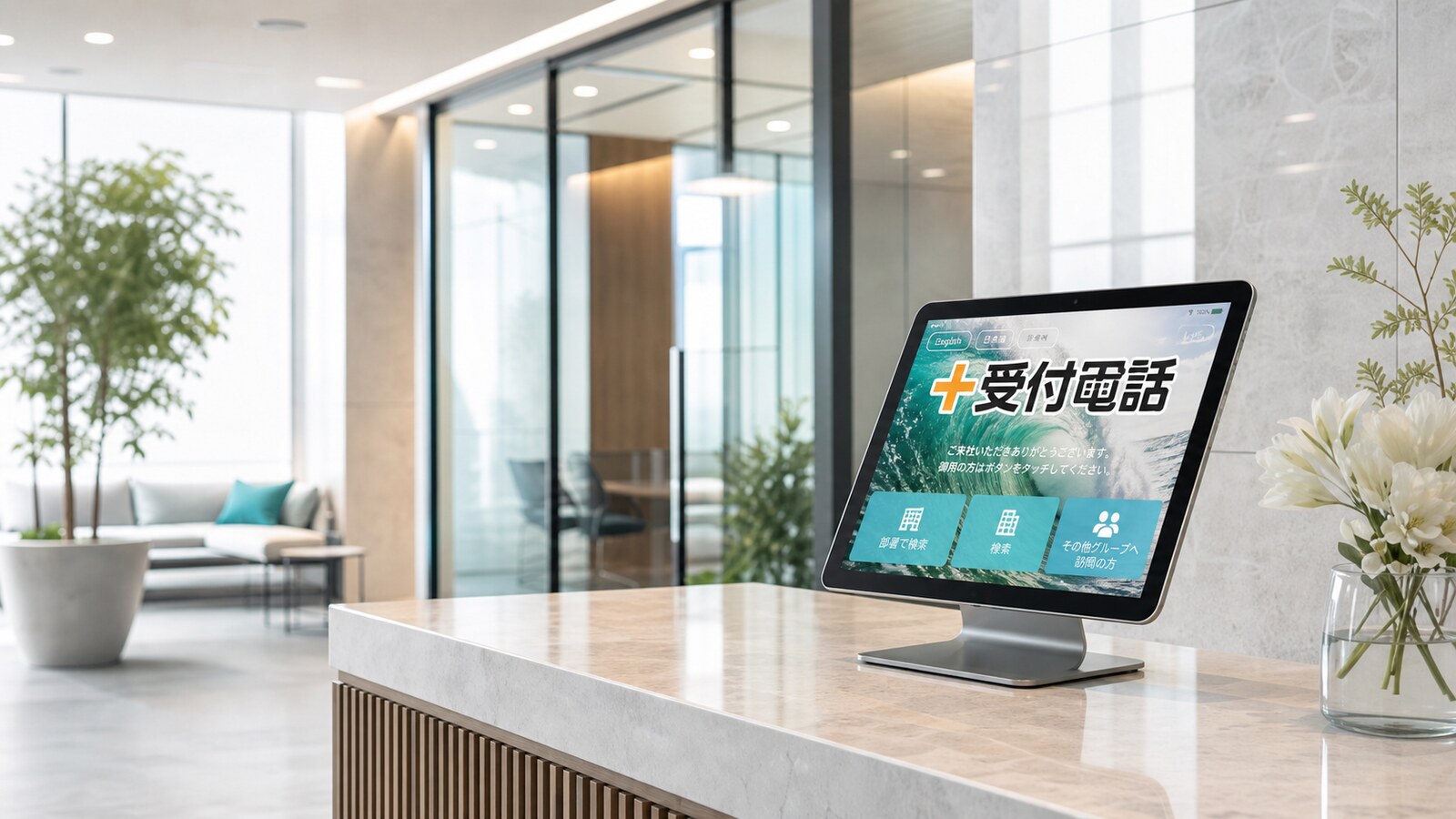
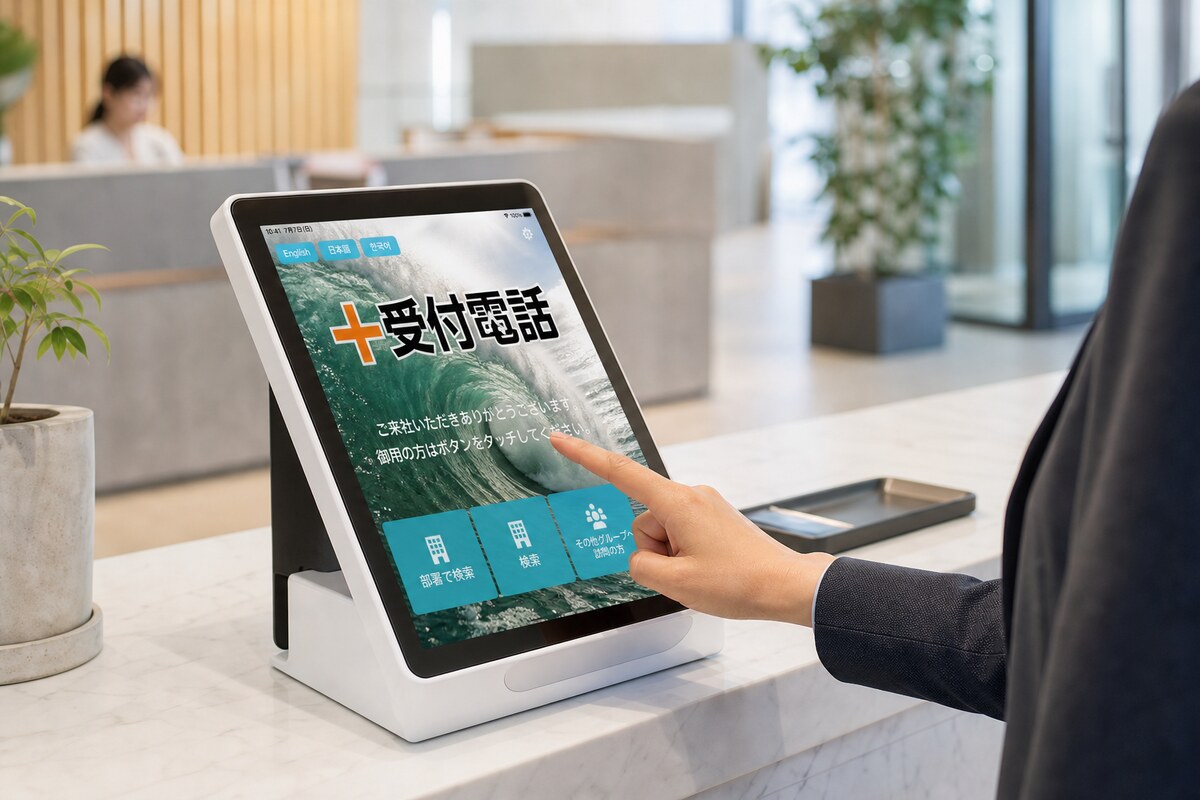
This is the screen actually running on a reception device. Backgrounds are switched from the admin console.
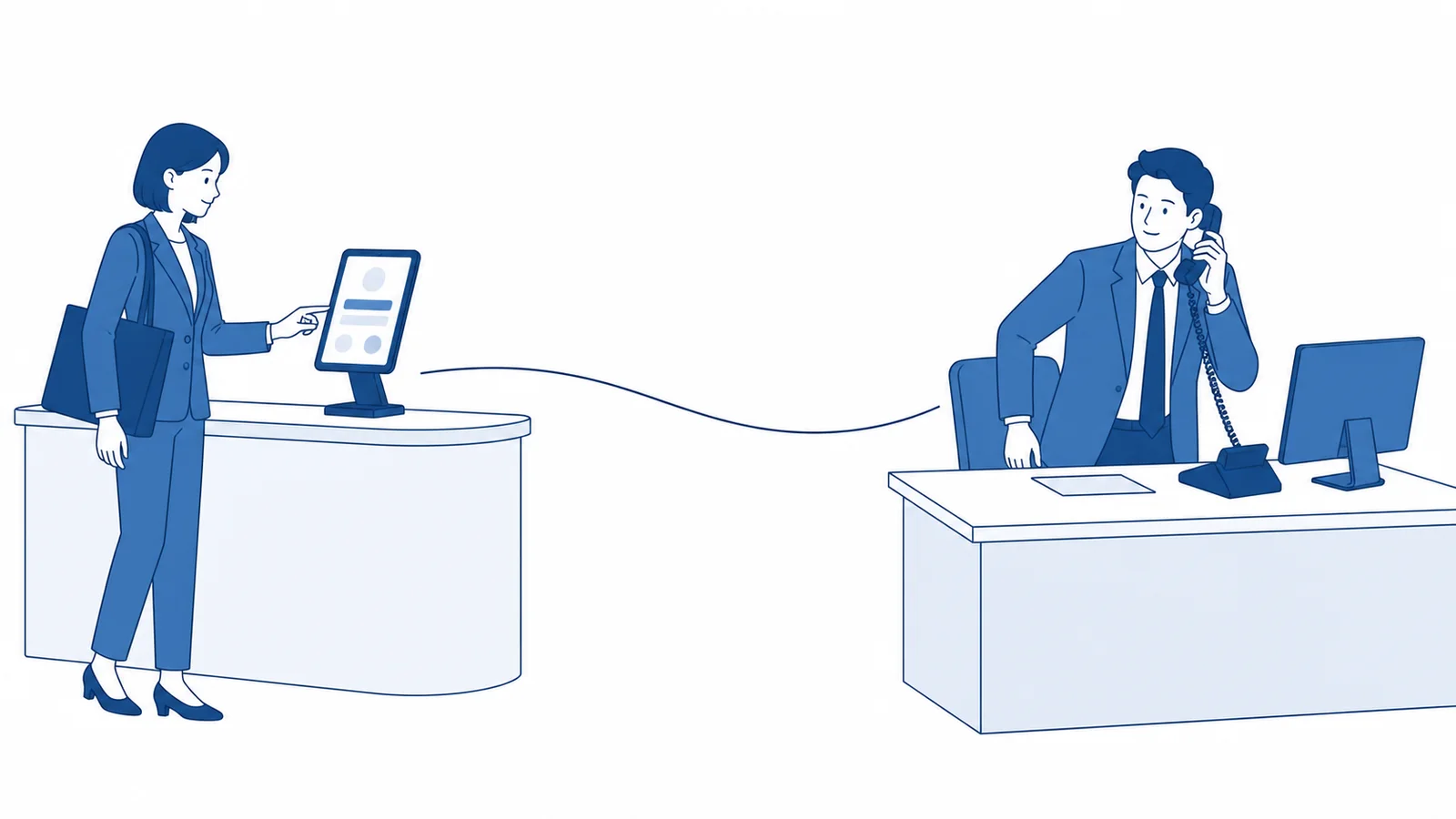
The time a visitor spends waiting
is created by the hand-off itself.
Even when the day's visitors are on a shared calendar, nobody knows who is free at that particular moment. Until the right person notices the message from reception, the visitor waits in the lobby. In plenty of offices, someone sitting nearby still gets up and goes looking for them.
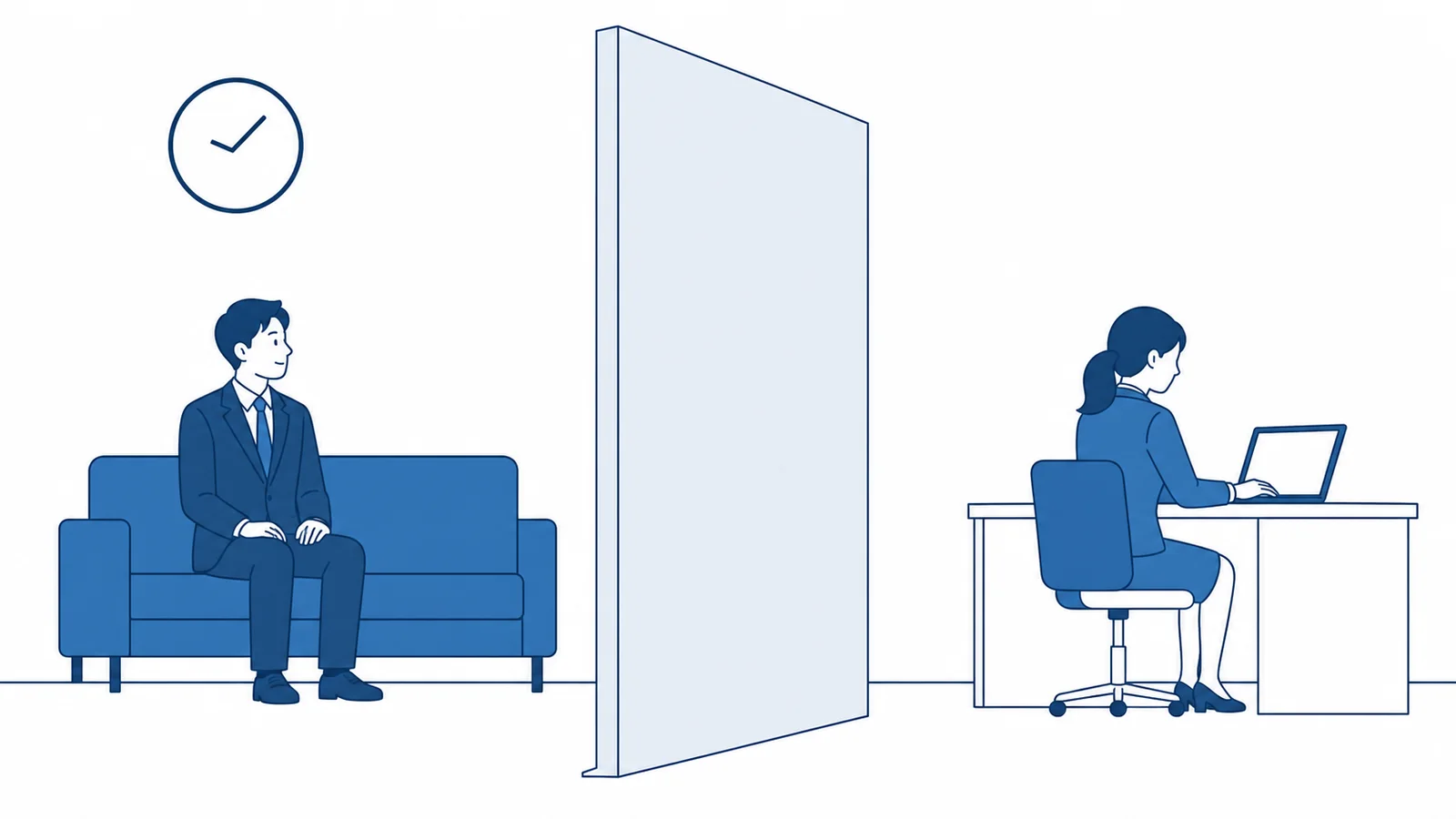
With a notification-based reception system
- -The message lands in chat or email, but nothing happens until someone notices it
- -If the person is in a meeting or away, someone nearby ends up handling it anyway
- -Reception has no way of telling whether the person is at their desk
- -Picking a name from a list gets harder the more people there are
With +Reception Cloud
- +The moment the visitor makes a choice, that person's phone rings
- +Used alongside a smartphone extension, staff can answer from home or on the road
- +Even with only a vague idea of the name, the visitor can find the person and call them
- +The call can also post a record of the visit into chat
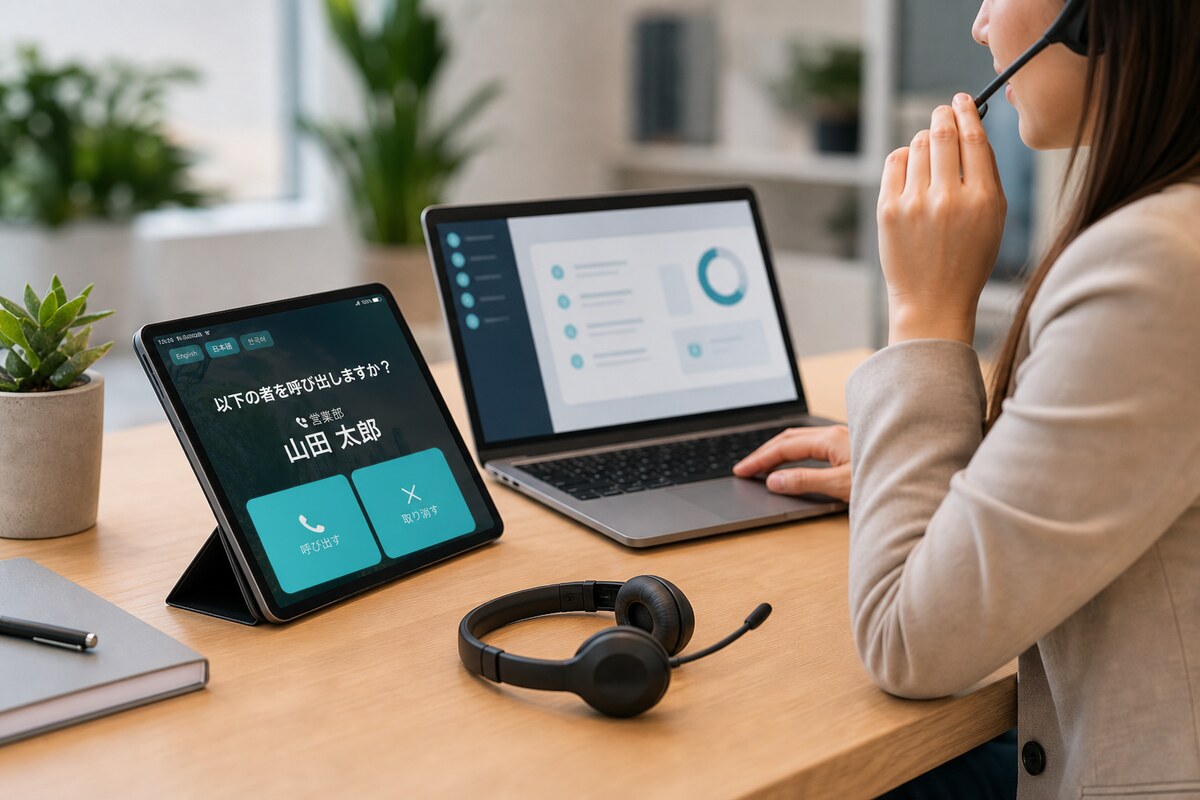
The person being called answers on their usual phone
There is no dedicated app to open and no notification to tap through. The desk phone rings and you pick it up. If a smartphone extension is in use as well, the call arrives there too. Reception may work differently now, but for everyone else nothing changes.
Even a first-time visitor reaches the right person without hesitating.
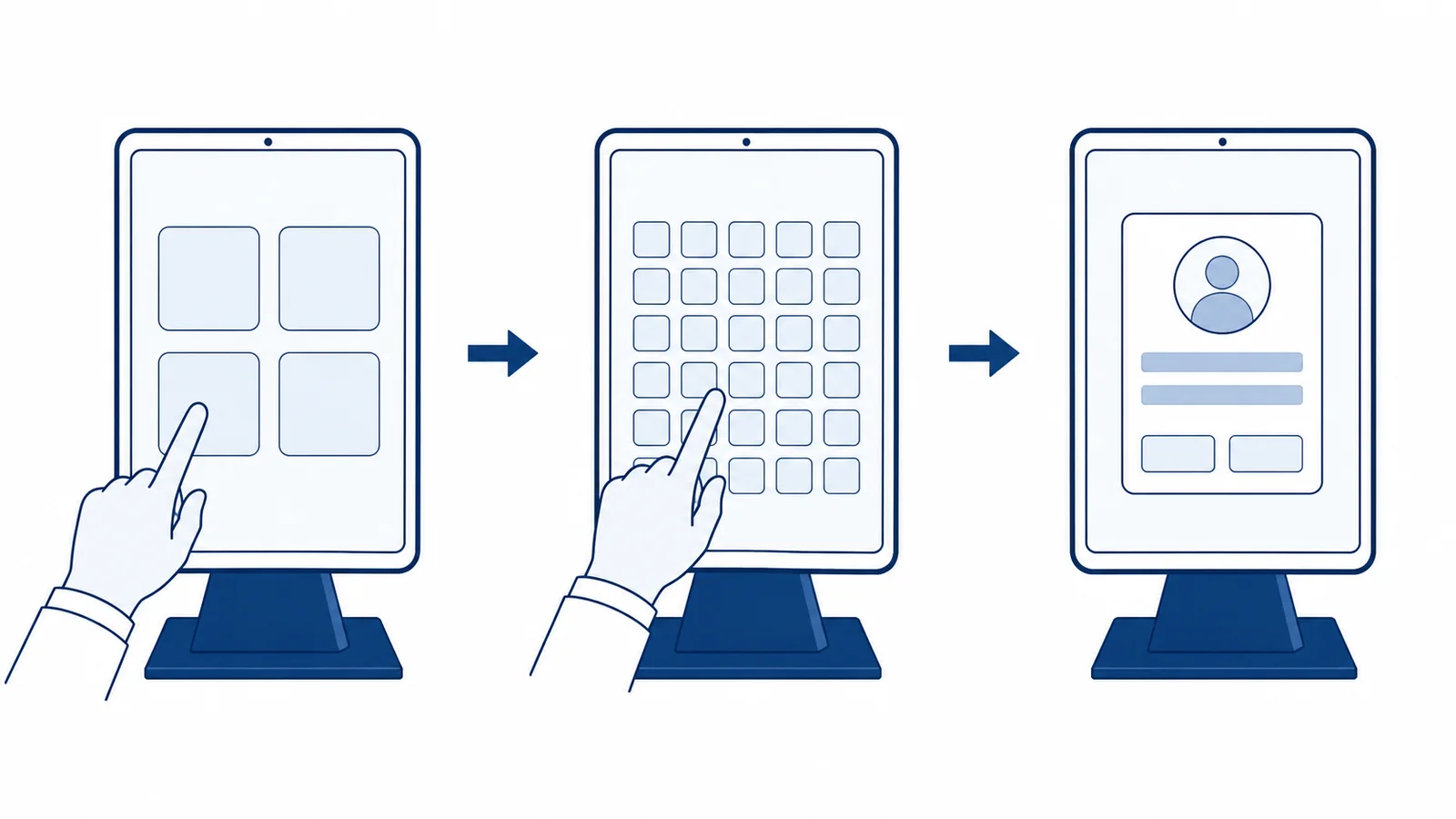
A visitor standing at reception sees one screen of large buttons and nothing else. Frequent destinations are there directly; if they know the department they pick it; if all they have is a name they search for it. Every route ends at the same confirmation screen.
Pick
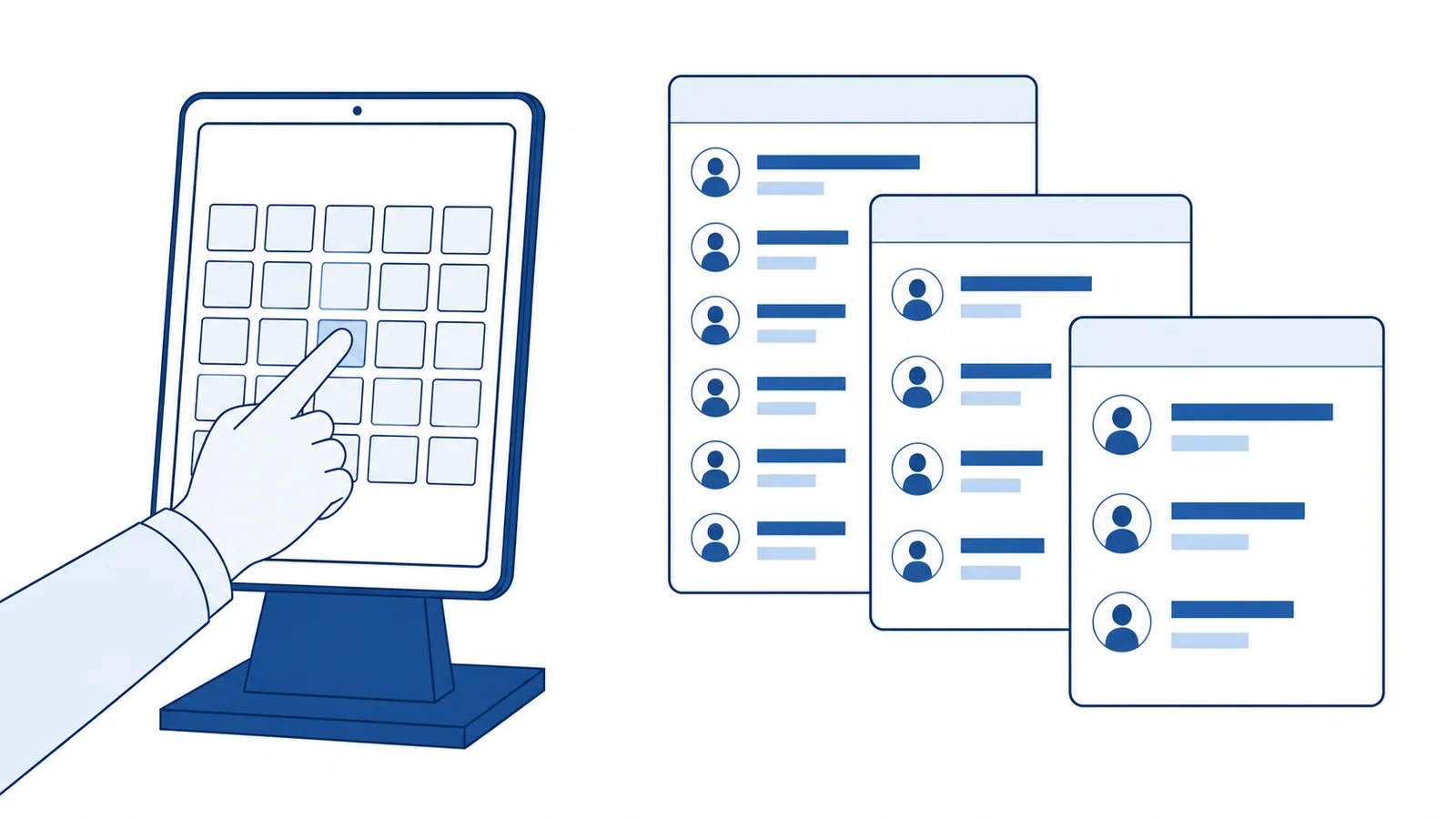
The home screen holds up to four frequently used destinations. General reception or a delivery desk is one tap from an extension. To browse by department, a page of nine buttons opens onto nine further group pages of nine buttons each. There are 162 icons to choose from.
Search
When all the visitor has is a name, they search on a katakana keyboard. The number of matches updates with every character, so the list narrows as they type. When nothing matches, the search button cannot be pressed — so they never finish typing only to find no one.
Call
The screen shows the department and name and asks for confirmation before dialing. If the line is not ready, the call button is not shown at all, so a visitor is never left listening to a call that cannot connect. The calling screen shows the person's photo as well.
It starts on one screen of large buttons
There is nothing on it but a line of guidance and the buttons. Text size has 11 steps, so the screen stays readable from a distance without squinting. Buttons sit three to a row, large enough that they are hard to mis-tap.
A half-remembered name is still enough for a visitor to find someone.
You cannot ask a visitor to use a Japanese input method on a reception device. They still have to be able to reach Mr Saito. Each of the ways a Japanese name commonly goes wrong is handled by a specific feature.
Typing without an input method
Katakana are laid out directly on screen, 10 columns by 5 rows. The voiced mark ゛, the semi-voiced mark ゜ and the small-character key are applied to the character just typed, which covers every sound without adding more keys.
Absorbing mistyped names
Voiced marks, semi-voiced marks and small characters are normalized before matching, so サイトウ and ザイトウ return the same result. Full-width digits and spaces are normalized too.
Search by family name or given name
Each name is indexed three ways — family name, given name and the two joined — so either one can be typed first. Matching is anchored to the start, so a single character does not flood the screen with candidates.
Works with a directory that has no phonetic readings
For contacts with no phonetic reading recorded, the reading is generated from the kanji name. This happens entirely on the device using a bundled morphological dictionary (MeCab), so no names are sent anywhere.
Search by department or contact details
Departments, sections, phone numbers and email addresses are all searchable. You can also set up preset buttons that filter to a whole department, or searches that match a phone-number pattern.
Less button design to do
The nine most common departments are taken from the imported contacts, and the search buttons and icons are assembled automatically. Nobody has to design the button layout from scratch at rollout.
It can be left to run when nobody is at reception.
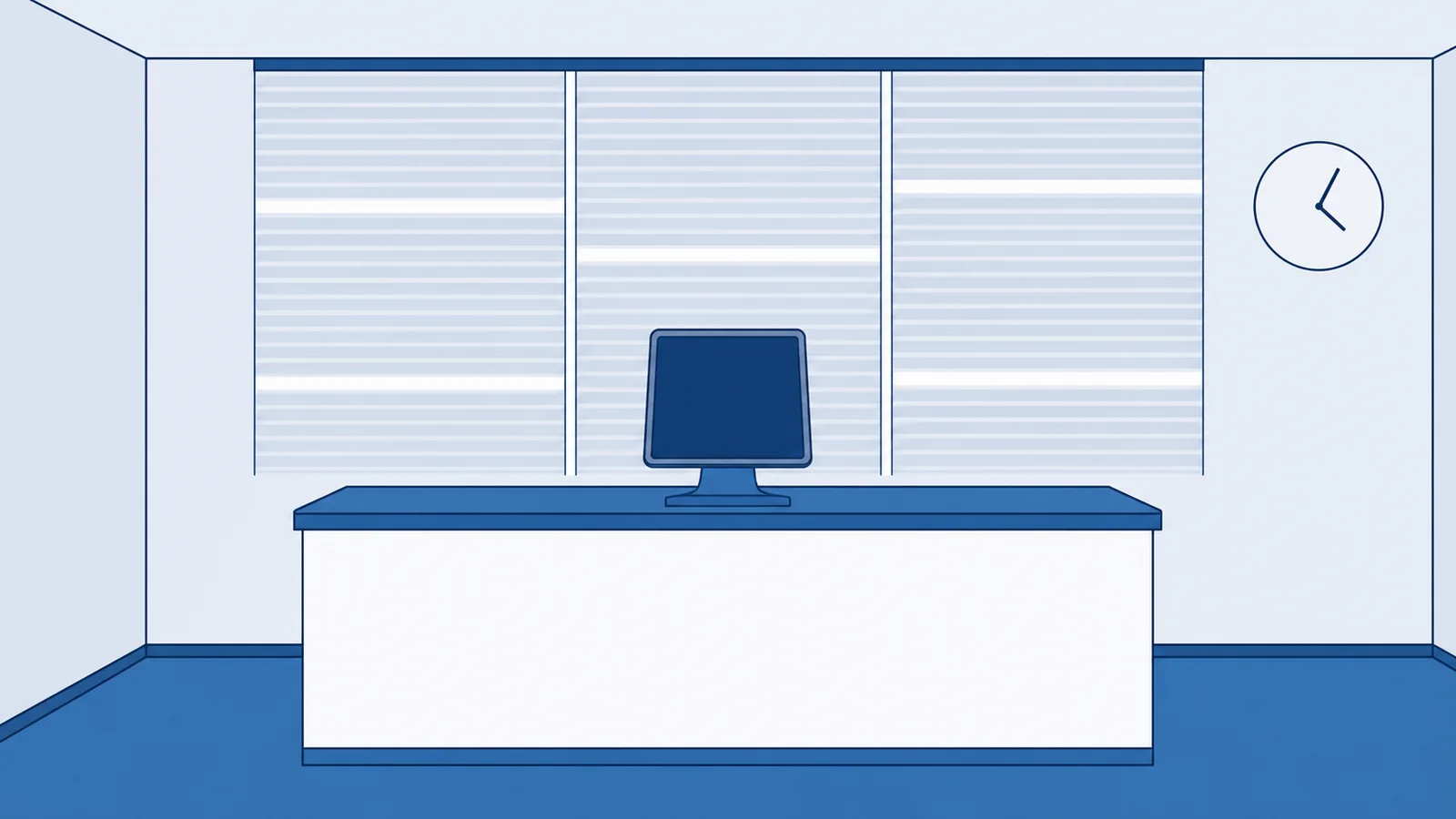
Early mornings, evenings and the lunch break are exactly when the device earns its place. It switches to a notice screen on your business-hours schedule, and recovers on its own — for the call, the screen and the line — when something unexpected happens. Combined with your PBX, calls that arrive out of hours can also be forwarded to an extension answered by AI.
Switches automatically with your business hours
Opening days and times are set per weekday in five-minute steps. Outside those hours the device shows a notice screen and stops listening for calls altogether. Ranges that cross midnight, such as 22:00 to 06:00, are supported, as is round-the-clock reception.
It always returns to the first screen
When a call ends the device returns to the home screen by itself. If a call fails it shows an apology and returns three seconds later. Taps are ignored while the screen is changing, so a call is never placed twice. It runs in kiosk mode, and the screen does not sleep.
It watches the line and the audio
Every 60 seconds it checks the connection and re-establishes it if needed. It also re-registers when the network comes back or the app returns to the foreground, and tries to recover automatically from audio device errors.
Personal mobile numbers are not displayed
Numbers beginning 070, 080 or 090 appear as "Mobile" in the list and on the calling screen. Personal numbers are never left on a device that anyone can walk up to.
Logs look after themselves
Logs roll over every 5 MB or 12 hours, and anything older than 14 days is deleted automatically. When something needs investigating, several logs can be bundled into a single ZIP and shared.
Only administrators can open the settings
The settings screen requires a 4- to 8-digit administrator PIN. Depending on the contract, the call settings and purchase items can be hidden entirely.
Out-of-hours calls can be handed to an AI receptionist
+Virtual AGEphone is a cloud service that joins your PBX or cloud PBX as an extension and lets AI take the calls. Forward out-of-hours calls to that extension and someone still answers while the reception device is showing its notice screen, with the conversation kept as a recording, a transcript and a summary. Your numbers and your PBX stay exactly as they are.
See +Virtual AGEphone (Japanese) →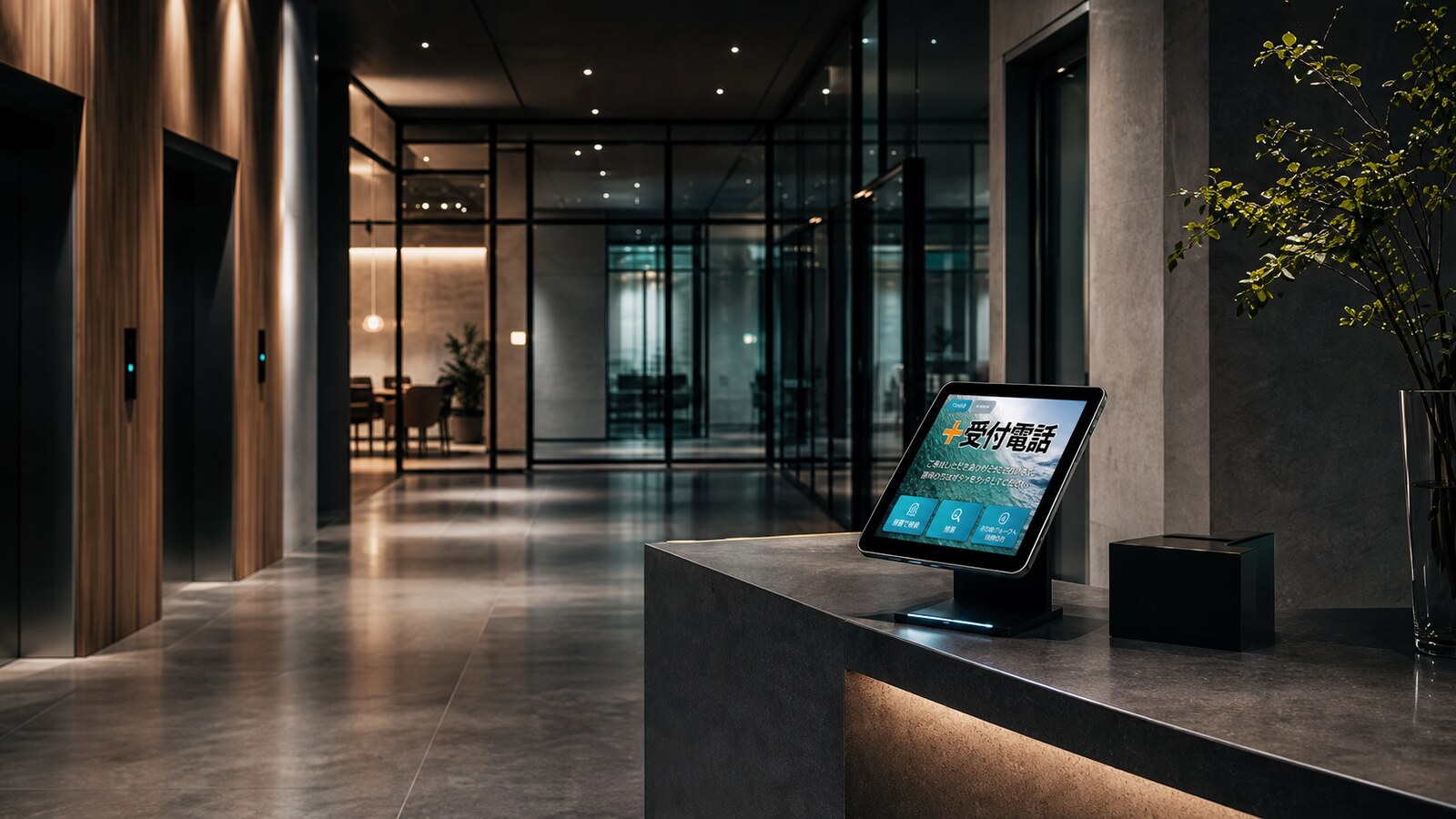
For a reception desk with nobody behind it
Because visitors call the person themselves, reception does not need to be staffed continuously. Queues and face-to-face hand-offs both shrink. Installation is a stand on the counter — no building work.
The first impression at reception can look like your company.
The reception device is the first thing a visitor sees of your company. Backgrounds, colors and typefaces can be matched to the lobby and to your logo. Each site can have its own feel, or the whole group can share one.
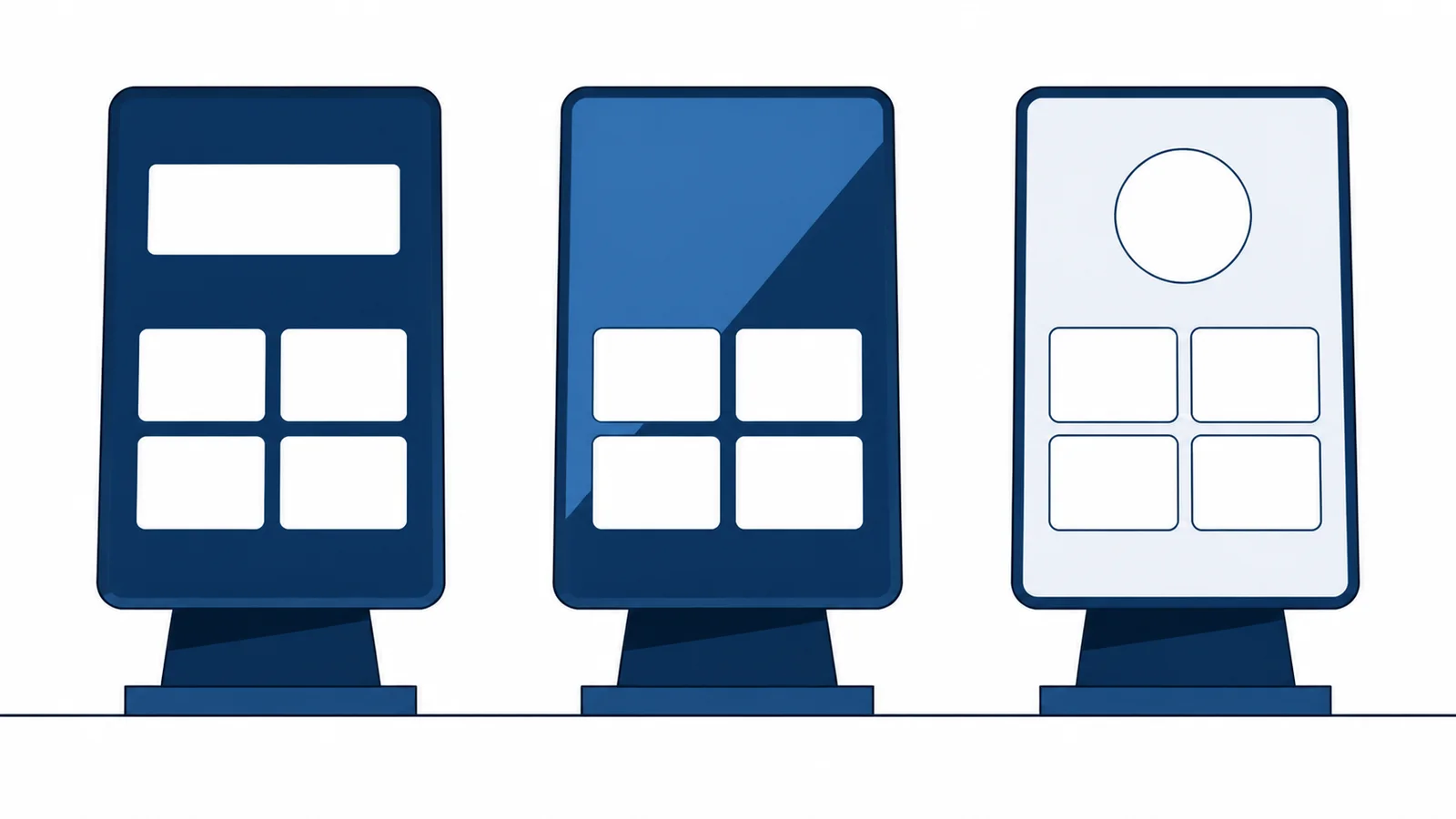
Choose a background and colors
There are 13 background skins (6 video, 5 still, 2 CSS-only), 14 color schemes, the system typeface plus three others, 11 text sizes and 10 levels of button transparency. Your own logo can be dropped in.
Deliver a design of your own
Background images, CSS and HTML made for one customer are delivered from the admin console, and a different design can be assigned per extension. Changes apply without waiting for an app update, so a rebrand or a seasonal change lands straight away.
Visitors choose the language
An on-screen button switches between 日本語 / English / 한국어. When the visit ends and the device returns to the first screen it reverts to Japanese, so the next visitor is not left with someone else's language.
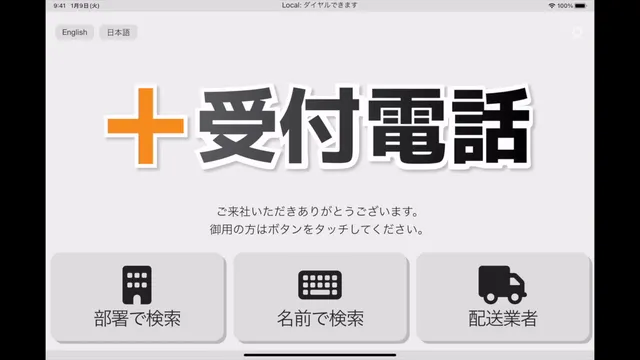
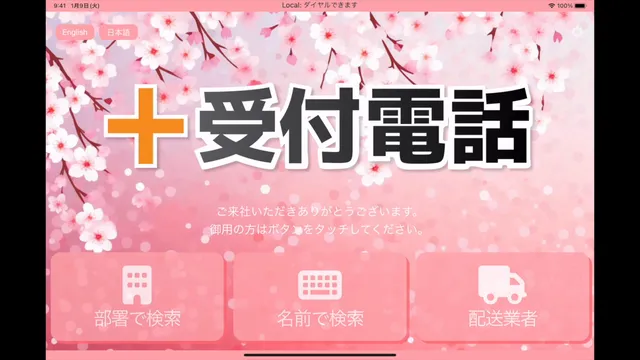
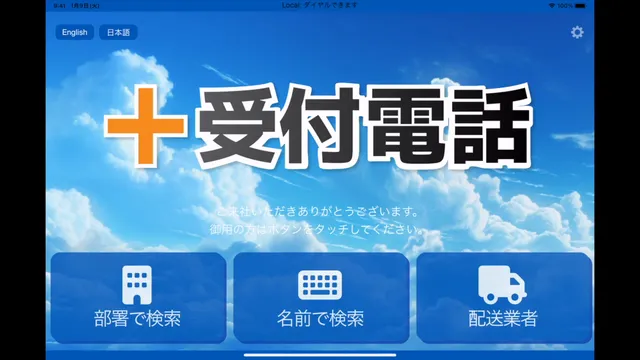
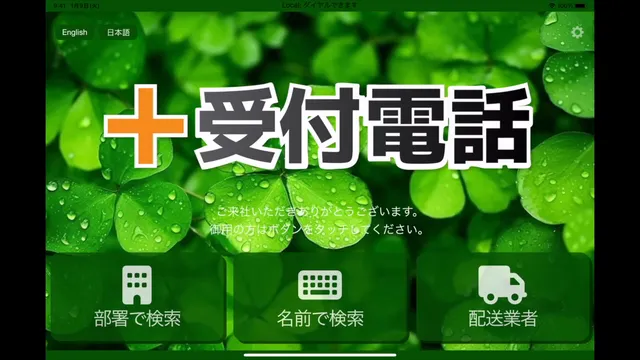
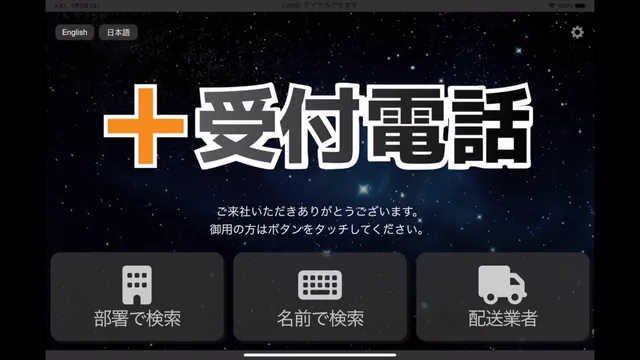
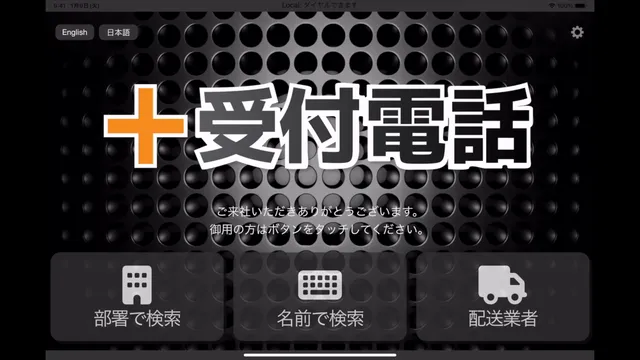
These are backgrounds taken from a live reception screen. The button layout and the wording stay put; only the background and the colors change. To see how the moving backgrounds look, watch the video at the top of this page.
Watch the skin theme video on YouTube →More sites should not mean more setup work.
Reception devices end up spread across sites. So that configuration can reach them without sending an engineer, there are four ways to deliver it. All of them take a few taps at the device, which is little enough to ask of someone on site with no technical background.
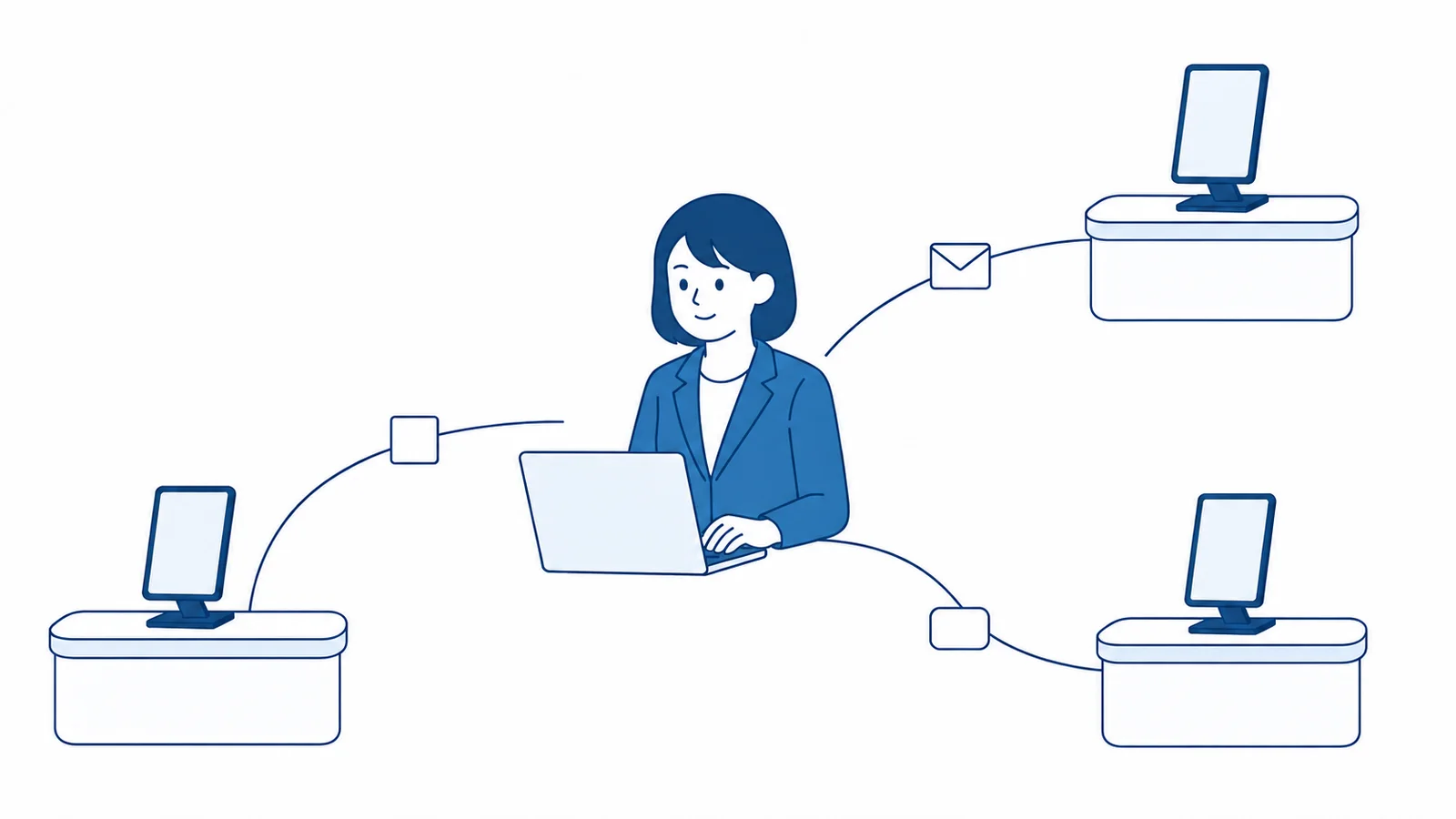
Encrypted QR code
Scan a QR code carrying the tenant details and the location of the distribution files, encrypted with AES-256. Codes can be given an expiry, after which they stop working.
Setup link
Open a link sent by email or through MDM. It carries the same content as the QR code, and it can be accepted while the app is starting up or already in use.
ZIP distribution
Settings, logo, contacts and a custom skin are delivered together. The bundle is protected with a 4-digit password, and five wrong attempts end the attempt.
Push notification
Configuration can be pushed to devices already in service. The device confirms the content before applying it, so nothing is overwritten by accident.
Layer site-specific settings over a shared template
A shared template is delivered with each site's own settings layered on top. Further overrides apply by condition — iPad or Mac, Wi-Fi or mobile — so one distribution absorbs the differences between devices and connections.
Three ways to bring in the directory
The iPad's own Contacts (up to 100,000 entries), encrypted data from +Phonebook Cloud, or a contact file delivered from the admin console. From the iPad's Contacts only people with an extension are imported, so personal mobile numbers and fax numbers are left out. Where there is no photo, one is filled in from Gravatar.
Sites and resellers, in one admin console.
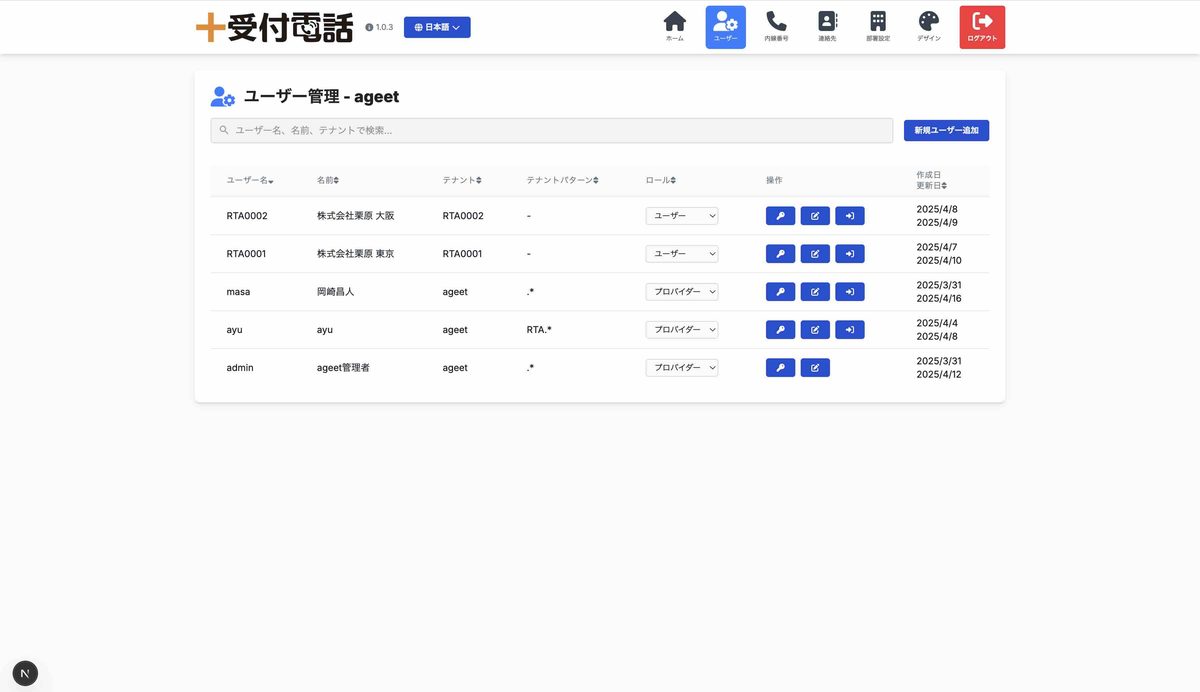
What comes up after rollout is updating the directory as people move, adding sites, and adding or removing extensions. All of it happens in a browser-based admin console. When the product is sold through resellers, each reseller keeps its own bounded view.
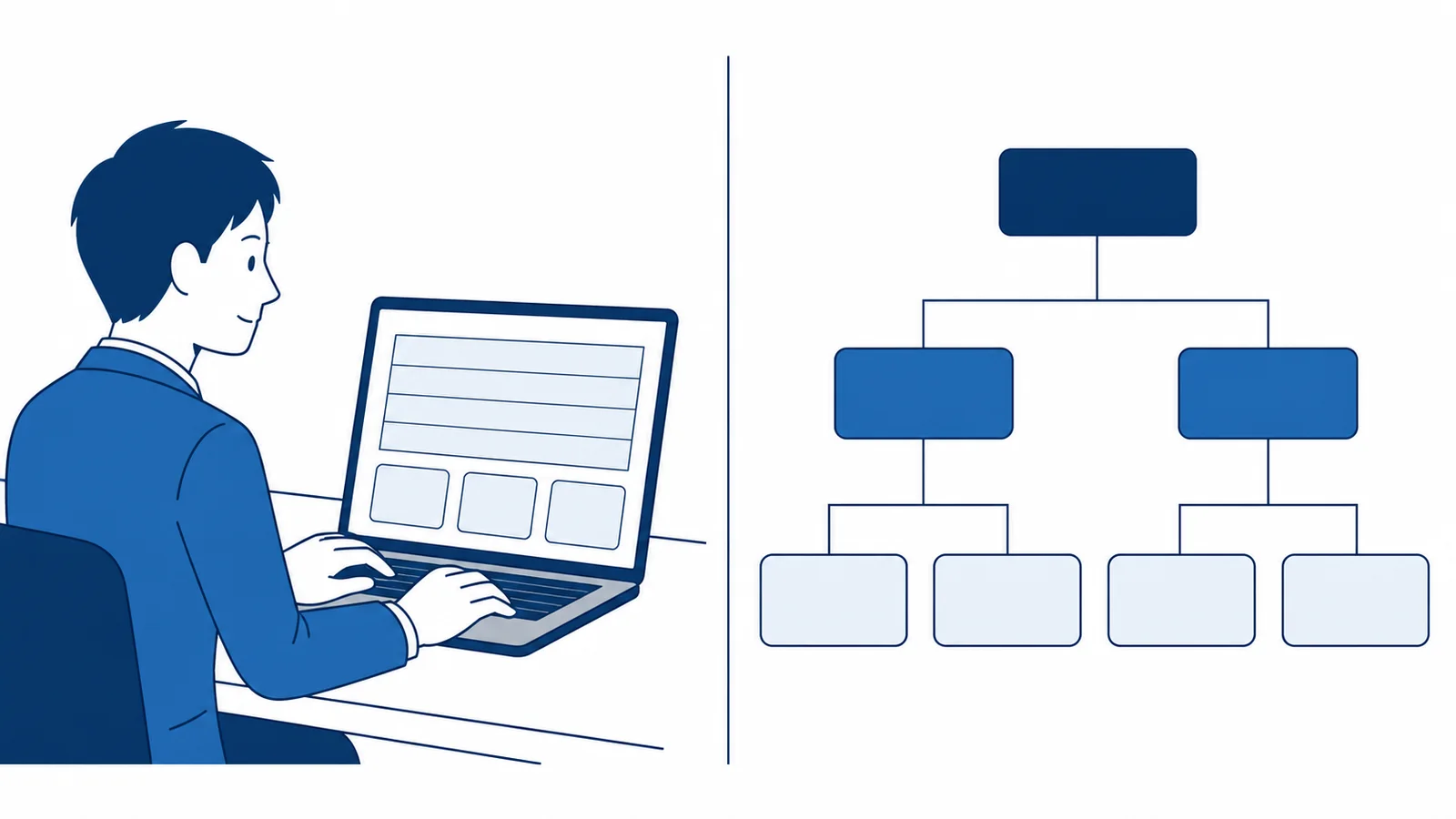
Update the directory and the buttons on the spot
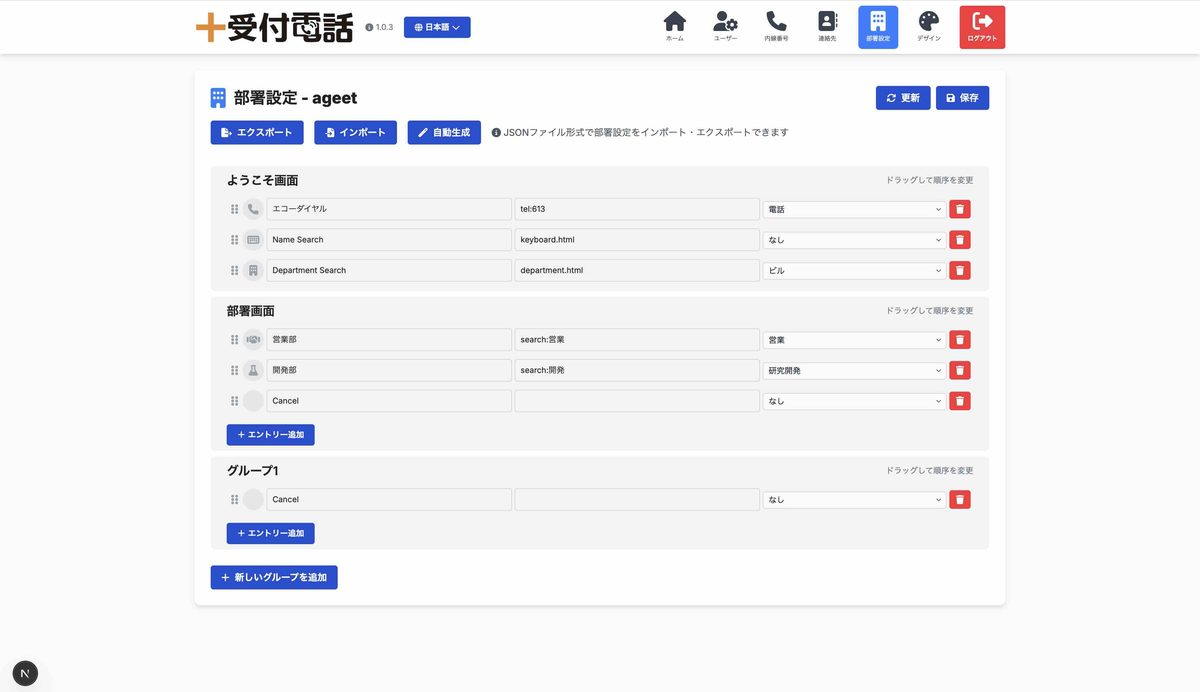
Contacts import and export in bulk as CSV, with duplicate checking and merging. The department structure can be generated from the contact data; set the icons and the order and it appears on the reception screen as it is.
Add devices from the same console
Register and configure extensions, or create many at once from a template. Issuing setup QR codes, distributing password-protected ZIPs, setting expiry dates and pushing to devices already in service all happen here too.
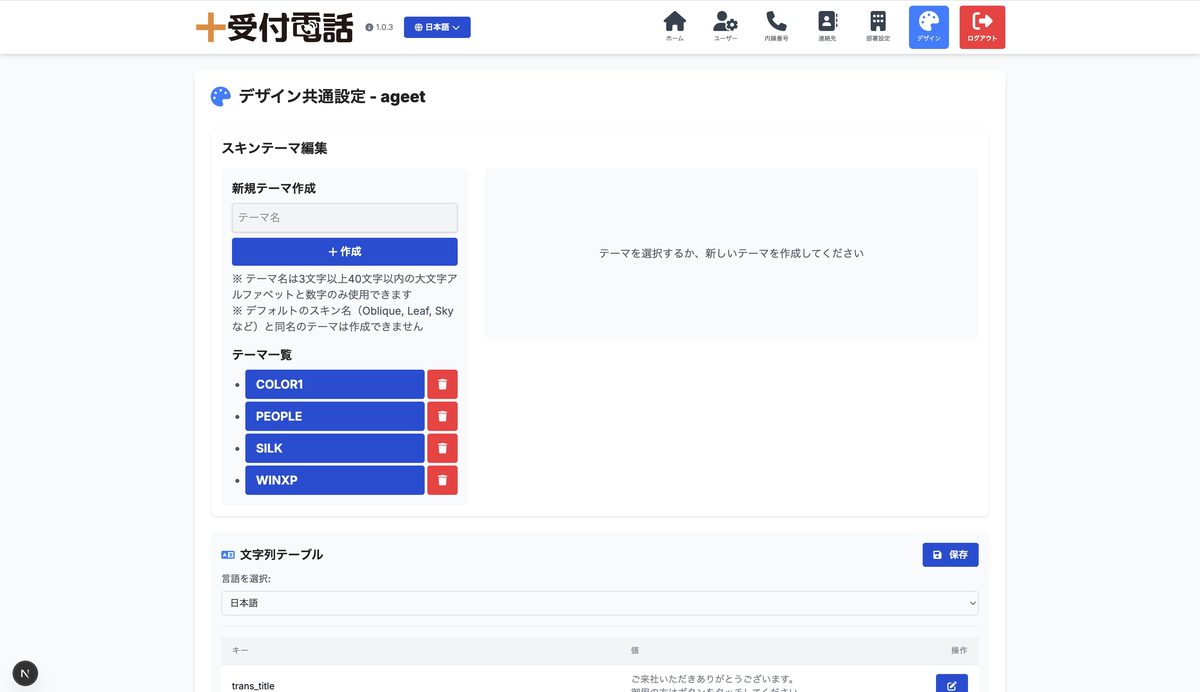
Deliver the reception screen design
Background images, CSS and HTML are edited in the console, and a different design can be assigned per extension. The wording shown on screen (Japanese and English) is managed in the same place.
The reseller hierarchy, expressed as it is
There are four permission levels: administrator, provider, sub-provider and general user. Scope follows the tenant name prefix (NXGTCV sits under NXG, for example), so a lower level is always a subset of the one above. The relationship between a reseller and the parties it sells through maps directly onto permissions.
Assign a limit and hand over the work
Each tenant can be given a cap on users and on extensions. The server rejects anything beyond what was allocated from above, so handing administration to a reseller does not lead to unexpected growth.
When in doubt, it stops
Sign-in is authenticated through AWS Cognito. Where a limit has not been set the answer is "not permitted"; where the signing key for delegated sign-in is missing, that feature is disabled outright. The default in an unclear state is the safe one. The admin console is available in Japanese and English.
These are the three screens opened most in day-to-day use. All of them run in a browser, with nothing to install.
It is not about logging the visit — it is about getting the conversation started.
Cloud reception systems are good at recording visitors and notifying the people concerned. +Reception Cloud takes it from there: actually calling the person, up to the point where a conversation begins. This comparison is not about which is better, but about what you want reception to do.
| Notification-based reception system | +Reception Cloud | |
|---|---|---|
| The visitor's experience | ||
| How the person is called | Mostly chat, email or an app notification. Calling by phone is often an add-on. | Calls the person's extension directly. It rings on a desk phone or on a smartphone extension. |
| How the person is found | Pick from a list, or type a reception number | Search on a katakana keyboard. It absorbs mistyping, and the match count updates with every keystroke. |
| Display language | Mostly Japanese. Other languages are often on a higher plan. | Switch between Japanese / English / Korean with an on-screen button |
| Your phone system | ||
| Relationship to the phone system | The reception service and the phone system are separate. Connecting them needs another service. | Connects to an existing IP-PBX or cloud PBX. Configuration templates for cloud and on-premises setups are included. |
| Where staff can answer | Anywhere, as long as a device can receive the notification | Used alongside a smartphone extension, staff can answer from home or on the road |
| Call protection | The call itself follows whatever the external service does | In a cloud configuration TLS and SRTP are mandatory, and client certificates are distributed encrypted. |
| Operations and administration | ||
| When the network is unreliable | Being cloud-dependent, reception can stop working when the connection drops | The reception screen and the directory are held on the device. The display keeps working, and once the network returns the device is ready to place calls again within 60 seconds. |
| Screen design | Mostly swapping the logo and changing colors | 13 backgrounds × 14 color schemes × 4 typefaces. Designs made for one customer can be delivered as well. |
| Rolling out to many sites | Configure each device from the admin console | Four routes: encrypted QR code, link, ZIP or push notification. On the device it takes a few taps. |
| Selling through resellers | Permissions are often designed for direct sales only | Four permission levels plus usage limits let you manage the reseller and sub-reseller hierarchy as it actually is. |
The left column summarizes what was generally true of Japanese reception systems published as of August 2026. For any particular product, check the vendor's current information.
What we changed this year, based on what customers told us.
The current version is v1.3.3. We have worked through the places where reception most often gets stuck.
-
2026.08
Business hours that cross midnight, for overnight reception
A range such as 22:00 to 06:00 can now be set as a single opening period. Set the start and end to the same time and reception runs around the clock. We pulled the logic out into its own unit-tested component, which also fixed drift at the date boundary and across opening days.
-
2026.08
Setup links now work from any screen
A distributed link now applies its configuration whether the app is starting up, in first-time setup or in service. Encrypted content goes through the same path as the QR code.
-
2026.07
Troubleshooting in one round trip
Tick the logs you want in the list and share them as a single dated ZIP. No more sending files one at a time.
-
2026.06
Revised the matching rules for katakana search
We improved how voiced marks, semi-voiced marks and small characters are handled, and how family and given names anchor to the start. The search now tolerates mistyping without flooding the screen with candidates.
-
2026.05
Added moving backgrounds (flame, waves, sky)
Video skins joined the still images, bringing the video count to six. Playback now resumes on its own after a call interrupts the audio.
-
2026.04
Reception comes up right after a restart
We updated the call engine to v1.13.115 and revised how state files are handled. After a power cut or a restart, reception starts working without anyone unlocking the screen.
-
2026.02
Reworked authentication so no password is sent
Sign-in for configuration delivery moved to AWS Cognito SRP authentication. The authentication backend is allocated per customer.
-
2026.01
Korean support
The reception screen and the settings screen can now be shown in Korean.
You can start with what you already have.
- Reception device
- iPad (iPadOS 16 or later) or a Mac with Apple silicon. Both landscape and portrait.
- Other devices
- Android / Windows / Linux — handled case by case for deployments of 10 devices or more
- Connects to
- Most existing IP-PBX and cloud PBX systems. Configuration templates for cloud and on-premises setups are included.
- Calling
- SIP. In a cloud configuration TLS and SRTP are mandatory. Opus / PCMU, DTMF per RFC 2833.
- Display language
- Reception screen: Japanese / English / Korean Admin console: Japanese / English
- Screen customization
- 13 backgrounds (6 video, 5 still, 2 CSS) plus no background / 14 color schemes / 4 typefaces / 11 text sizes / 10 button transparency levels / your own logo
- Button layout
- 4 shortcut slots on the home screen, 9 buttons on the department page, 9 group pages of 9 buttons each, 162 icons
- Admin console
- Runs in a browser. Manages users, tenants, departments, contacts, extensions and design. Supports four permission levels and per-tenant usage limits.
So that the first word at reception comes without a wait.
You can try it with a single iPad. We are happy to talk through the setup, including whether it will work with the phone system you already have.